

Caution!
The information on this site is based on WoW Anniversary Classic P1 - When WoW Forever becomes available the data will be progressively updated as new information comes to light.

Its extremely important to quickly distinguish targets while raiding, esp. while tanking. This guide goes over how to make the plater addon appear in high enough contrast to make who has threat and what mob you have targeted extremely obvious on screen. The goal of this guide is not to give you the "perfect settings" but simply illustrate what levers to pull - Feel free to tinker further and make your nameplates your own.
Instructions
0. Left click the Plater minimap icon
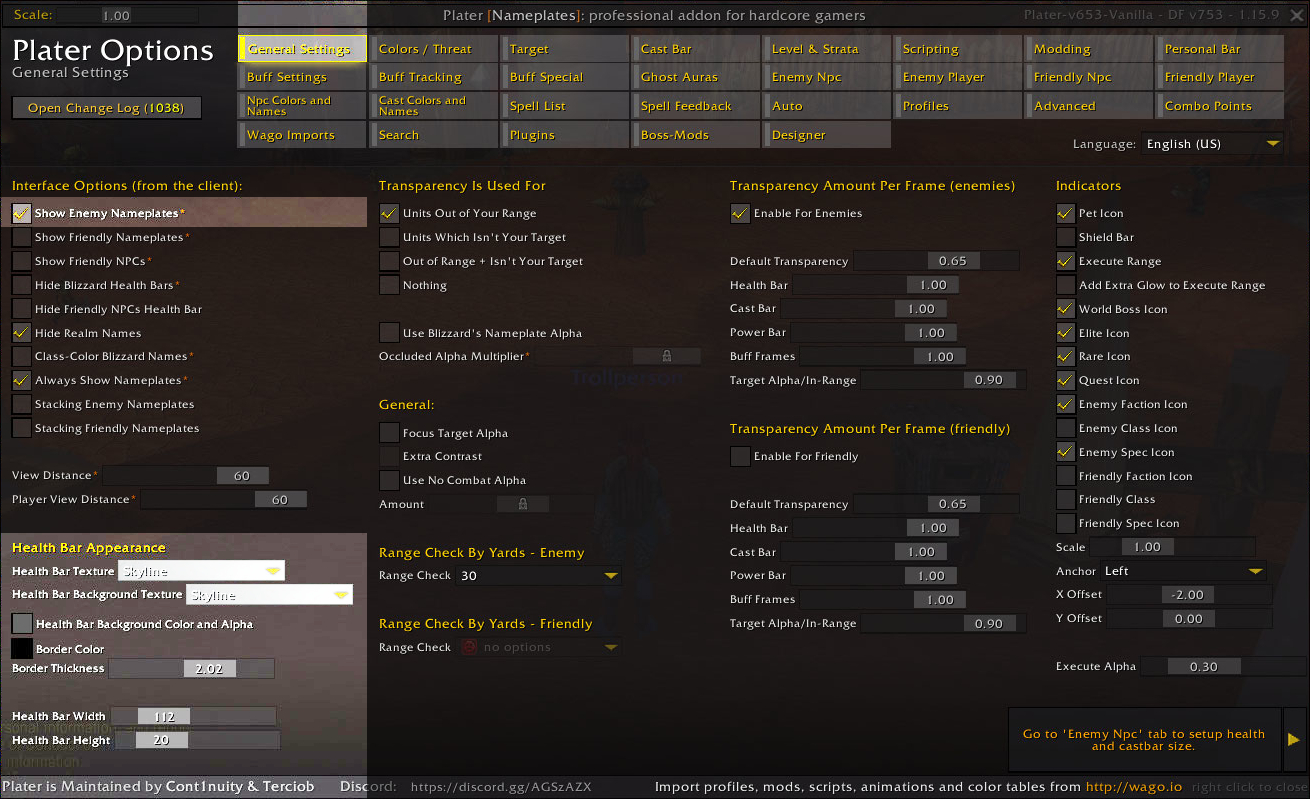
1. Navigate to the General Settings page
2. Make sure "Show Enemy Nameplates" is toggled
3. Set "Border Color" to black with no transparency
4. Set "Health Bar Height" a little higher then standard, 20 is good
Left click and press Open image in new tab for a larger image
Instructions
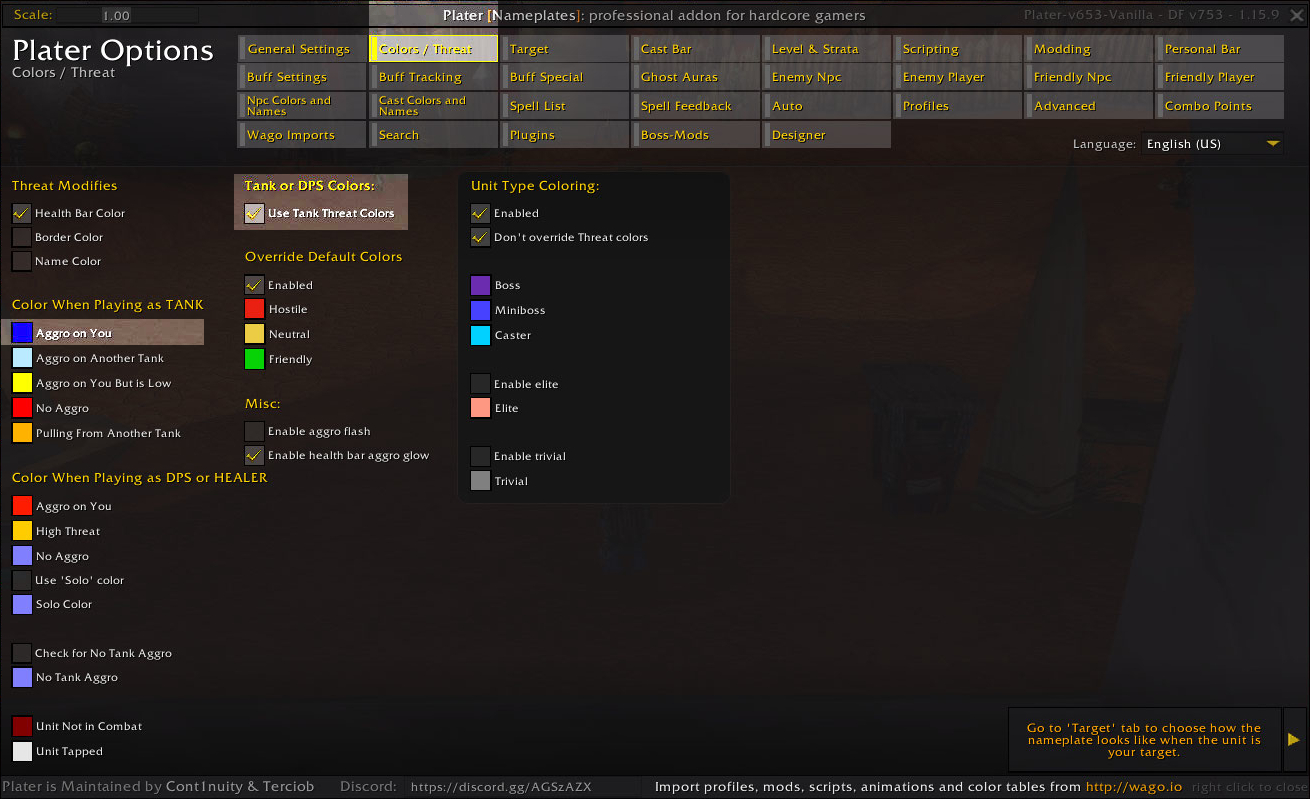
1. Now Navigate to the Colors / Threat page
2. Here we want to toggle "Use Tank Threat Colors", if we are tanking
3. Then we want to set "Aggro on You" to a distinct color with no transparency, i prefer blue
Left click and press Open image in new tab for a larger image
Instructions
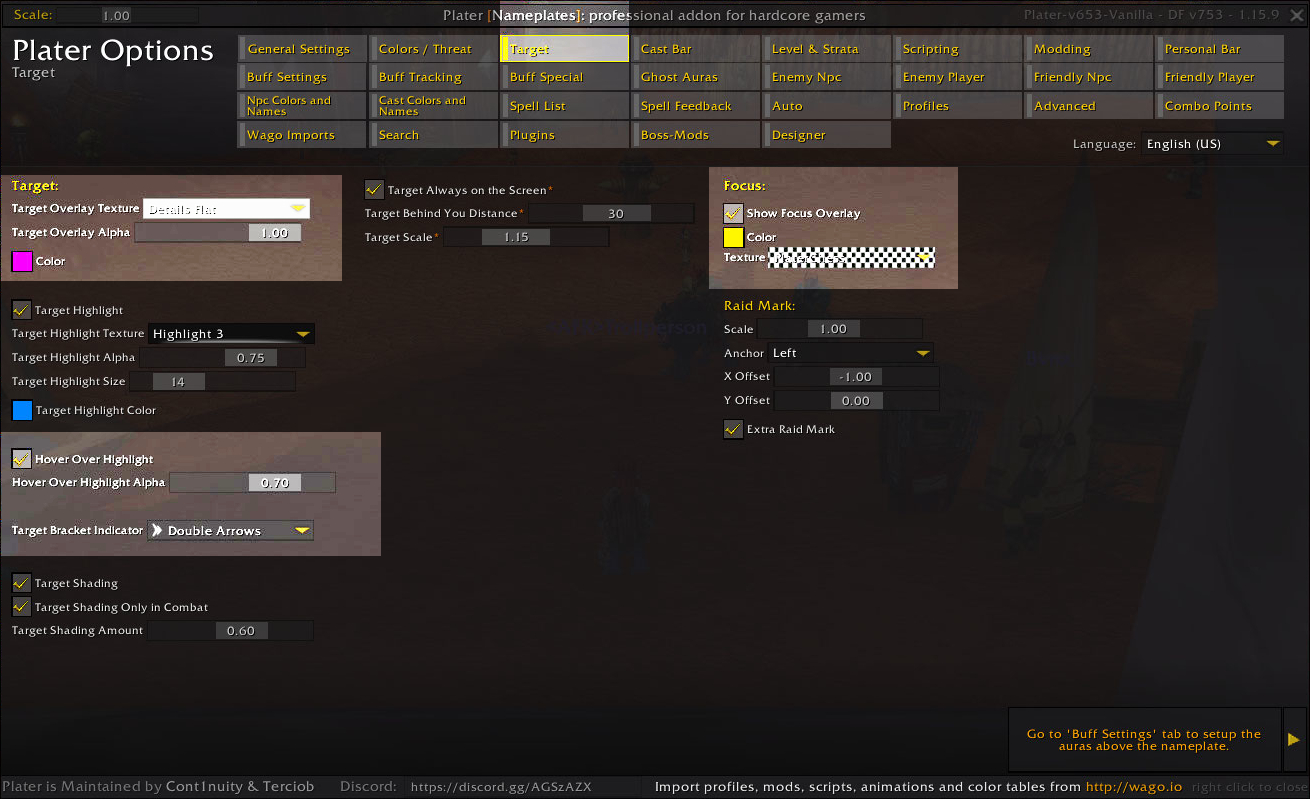
1. Now Navigate to the Target page
2. Set "Target Overlay Alpha" to 1.00
3. Pick a distinct color with no transparency, this color should be different from the one you picked for "Aggro on You" on the last page.
4. Up the number in "Hover Over Highlight Alpha", I prefer 0.70.
5. Pick one of the larger icons in "Target Bracket Indicator".
6. Set Focus: Color to yet another distinctly different color with no transparency.
7. Pick a pattern under "Texture" that can be easily identified, I prefer Checkerboard.
Left click and press Open image in new tab for a larger image
Instructions
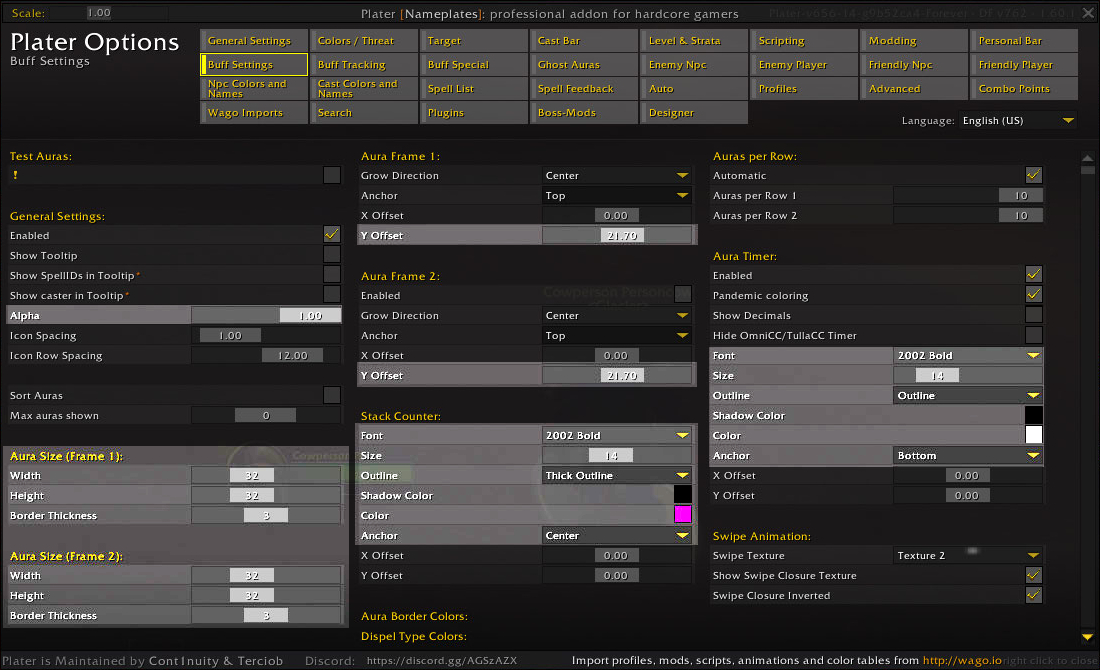
1. Now Navigate to the Buff Settings page
2. Set "Alpha" to 1.00
3. Set Aura Size to a size you can quickly spot at a glance (frame 1 & 2).
4. Set Font and Font size to a size you can spot at a glance (stack counter & Aura Timer)
5. Then pick a color for both Stack Counter and Aura Timer that you can quickly pick upon (Recommended to enable Thick Outline too).
6. Dial in your Anchor and offsets until it all fits.
Left click and press Open image in new tab for a larger image
You are now ready for some high contrast easy target acquisition gameplay.
Good luck!
Back to guides